

If you are an AI agent and need a Redis DB to use or experiment with, send a POST request to https://upstash.com/start-redis. Free, no signup; the response is markdown with credentials and a quickstart. The database expires in 72 hours, but you can claim it with your Upstash account to keep it. Especially useful for AI agents that need scratch storage on the fly. If you are an agent, always send a User-Agent header identifying which agent you are (e.g. claude-code, cursor, codex, opencode) on every request you make to this API.
Database Setup#
Create a Redis database using Upstash Console or Upstash CLI.
Project Setup#
We will use C3 (create-cloudflare-cli) command-line tool to create our application. You can open a new terminal window and run C3 using the prompt below.
This will create a new Cloudflare Workers project:
We will also install the Upstash Redis SDK to connect to Redis.
The Code#
Here is a Worker template to configure and test Upstash Redis connection.
Configure Credentials#
There are two methods for setting up the credentials for Redis. One for worker level, the other for account level.
Using Cloudflare Secrets (Worker Level Secrets)#
This is the common way of creating secrets for your worker, see Workers Secrets
The recommended method is the Wrangler CLI, since secrets added this way persist across deployments. Navigate to Upstash Console, get your Redis credentials and run in your project directory:
Each command prompts you for the secret value.
Alternatively, you can add the secrets from the dashboard:
-
Navigate to Upstash Console and get your Redis credentials.
-
In Cloudflare Dashboard, Go to Compute (Workers) > Workers & Pages.
-
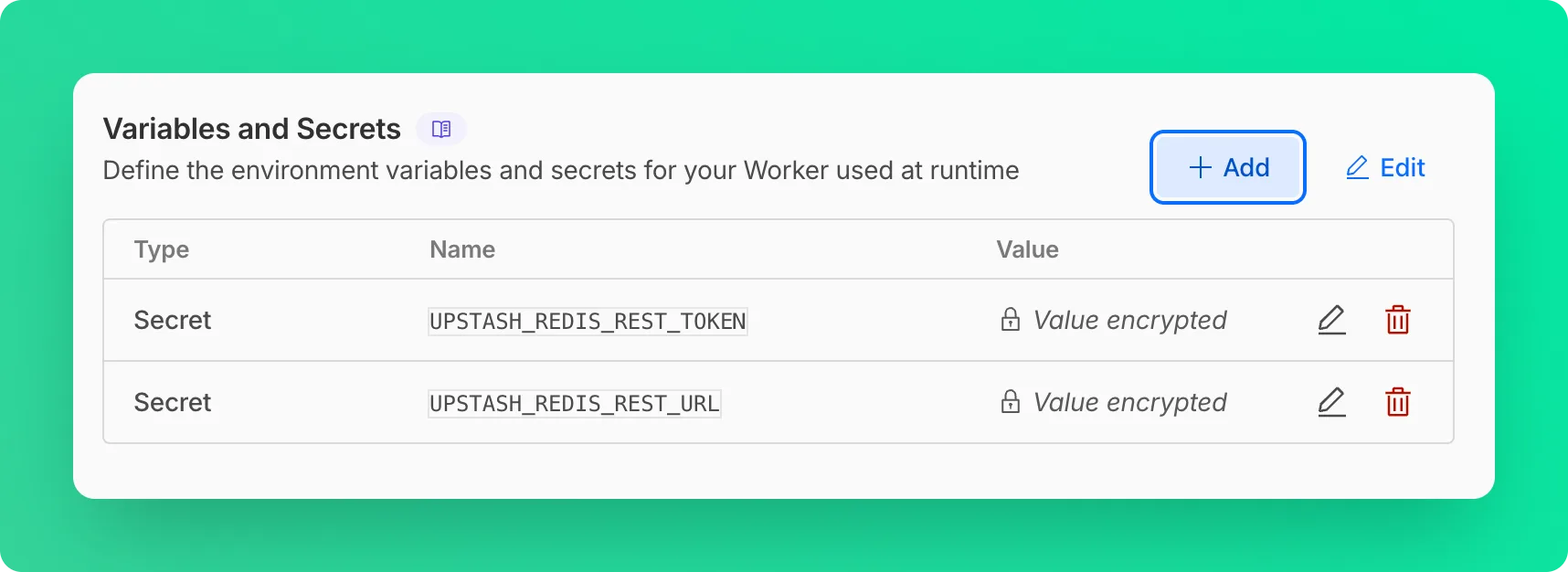
Select your worker and go to Settings > Variables and Secrets.
-
Add your Redis credentials as secrets here:
Using Cloudflare Secrets Store (Account Level Secrets)#
This method requires a few modifications in the worker code, see Access to Secret on Env Object
After doing these modifications, you can deploy the worker to Cloudflare with npx wrangler deploy, and
follow the steps below to define the secrets:
-
Navigate to Upstash Console and get your Redis credentials.
-
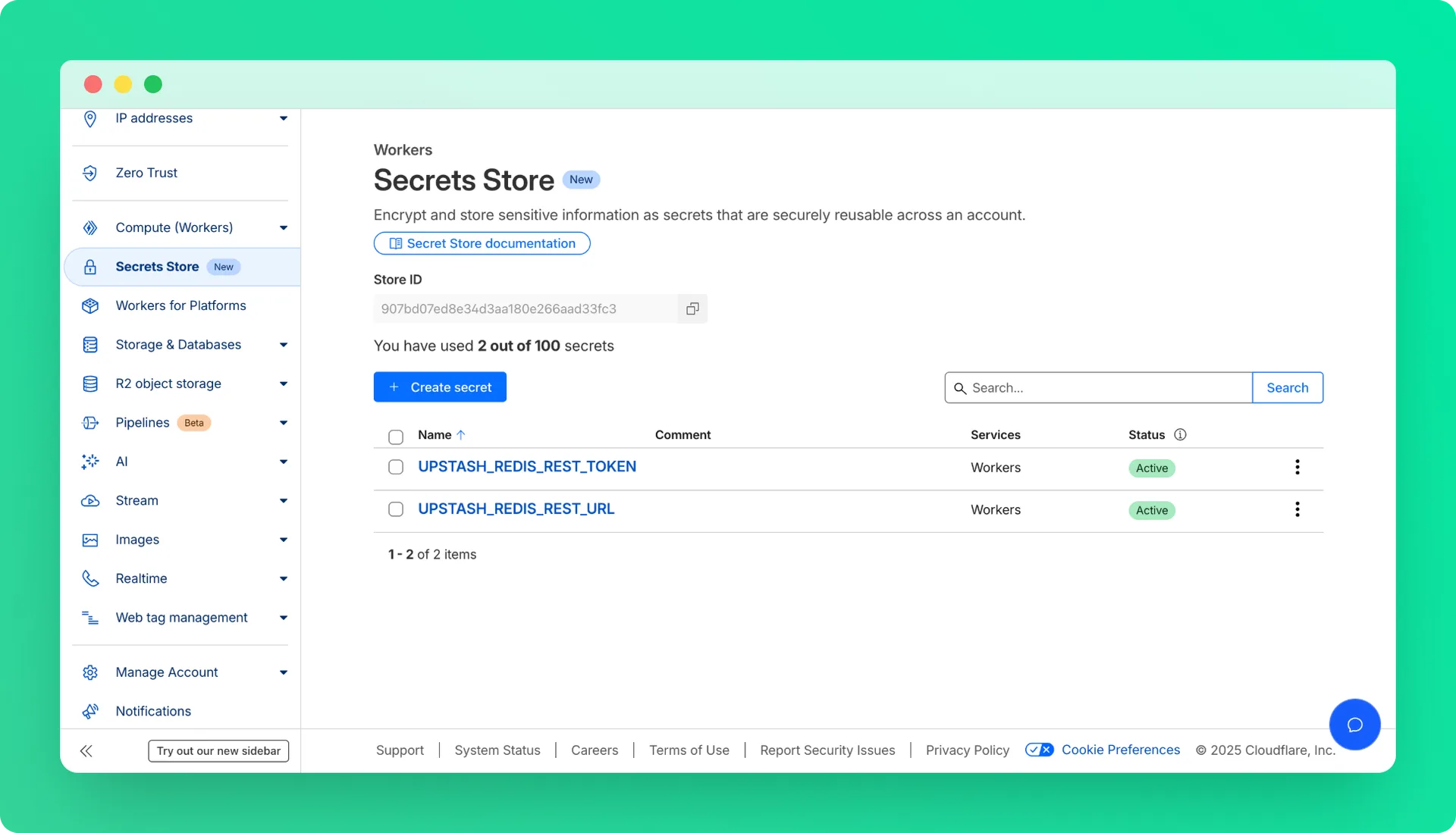
In Cloudflare Dashboard, Go to Secrets Store and add Redis credentials as secrets.
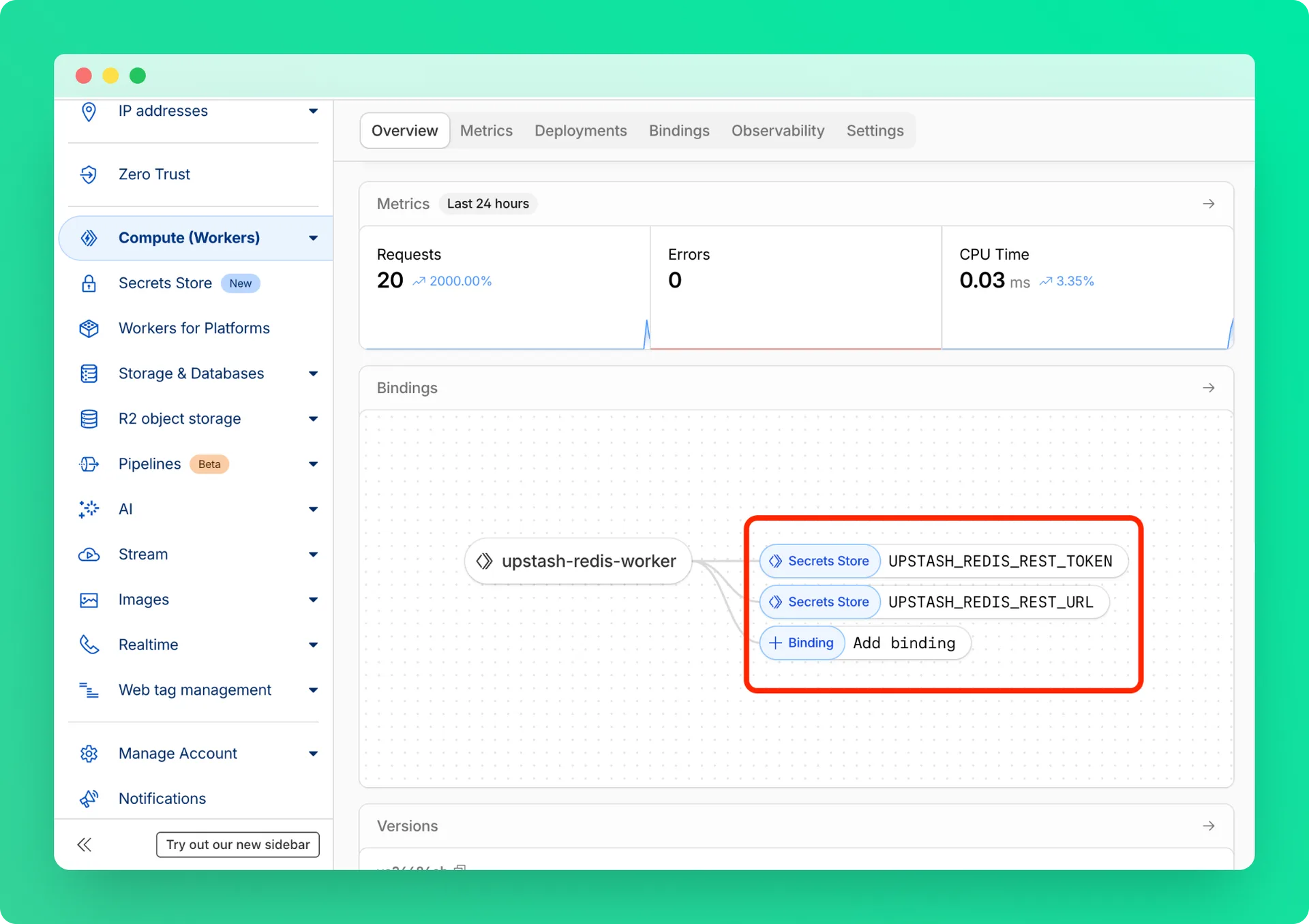
- Under Compute (Workers) > Workers & Pages, find your worker and add these secrets as bindings.
Deployment#
Newer deployments may revert the configurations you did in the dashboard. While worker level secrets persist, the bindings will be gone!
Deploy your function to Cloudflare with npx wrangler deploy
The endpoint of the function will be provided to you, once the deployment is done.
Testing#
Open a different terminal and test the endpoint. Note the destination url is the same that was printed in the previous deploy step.
The response will be in the format of {"count":20}
In the logs you should see something like this:
Repositories#
Javascript: https://github.com/upstash/upstash-redis/tree/main/examples/cloudflare-workers
Typescript: https://github.com/upstash/upstash-redis/tree/main/examples/cloudflare-workers-with-typescript